Teams
Work together without the chaos. Shared workspaces, clear roles, real-time updates.
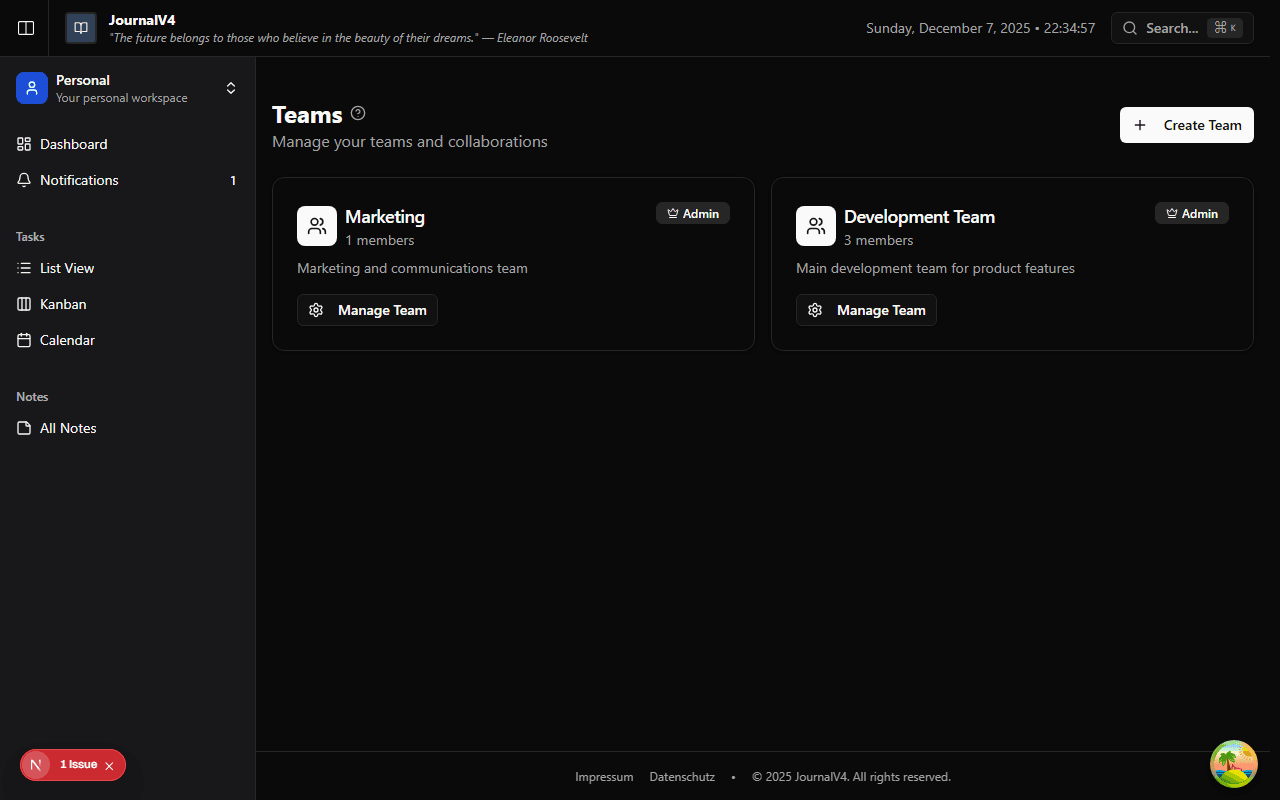
When You Need a Team
Working on something with other people? Instead of juggling shared logins or forwarding tasks, create a team. Everyone gets their own account, but you share a workspace.
Tasks and notes live in the team workspace, visible to everyone with access. Changes sync instantly—no more "did you see my update?" messages.
Starting a Team
Go to Settings → Teams → Create Team. Give it a name that makes sense (your company, project, or group) and you're the owner.
As the owner, you have full control: invite members, set roles, manage settings. You can't be removed from your own team.
Inviting People
Add teammates by email. They get an invitation link, create an account (or sign in if they already have one), and they're in.
Click Invite Member in team settings
Enter their email and pick a role
They click the link in their email
Changed your mind? Revoke pending invitations before they're accepted.
Who Can Do What
Not everyone needs the same level of access. Roles let you control what each person can do:
Viewer
Can see tasks and notes but can't change anything. Perfect for stakeholders who need visibility without editing.
Editor
Can create, edit, and complete tasks and notes. The go-to role for team members who are actively working.
Admin
Everything an Editor can do, plus managing members, invitations, and team settings.
Personal vs. Team Workspace
Your personal workspace stays private. Team workspaces are shared. Switch between them using the workspace switcher in the sidebar.
You can belong to multiple teams. Each one is a separate workspace with its own tasks and notes. Nothing mixes unless you want it to.
Managing Your Team
People come and go. As an admin, you can:
- Change roles — Promote someone to Admin or dial back to Viewer.
- Remove members — They lose access immediately. Their work stays with the team.
- Resend invitations — If someone missed the email, send it again.